
Article to Video Maker
Turn any article, blog post, or script into a narrated HD video — auto-generated slides, AI voiceover, and a presenter avatar. A free download that runs entirely on your own PC.
Download Free — 30 KB ZIPWindows 10/11 · No sign-up · No watermark fees · Nothing to install
What a Generated Video Looks Like
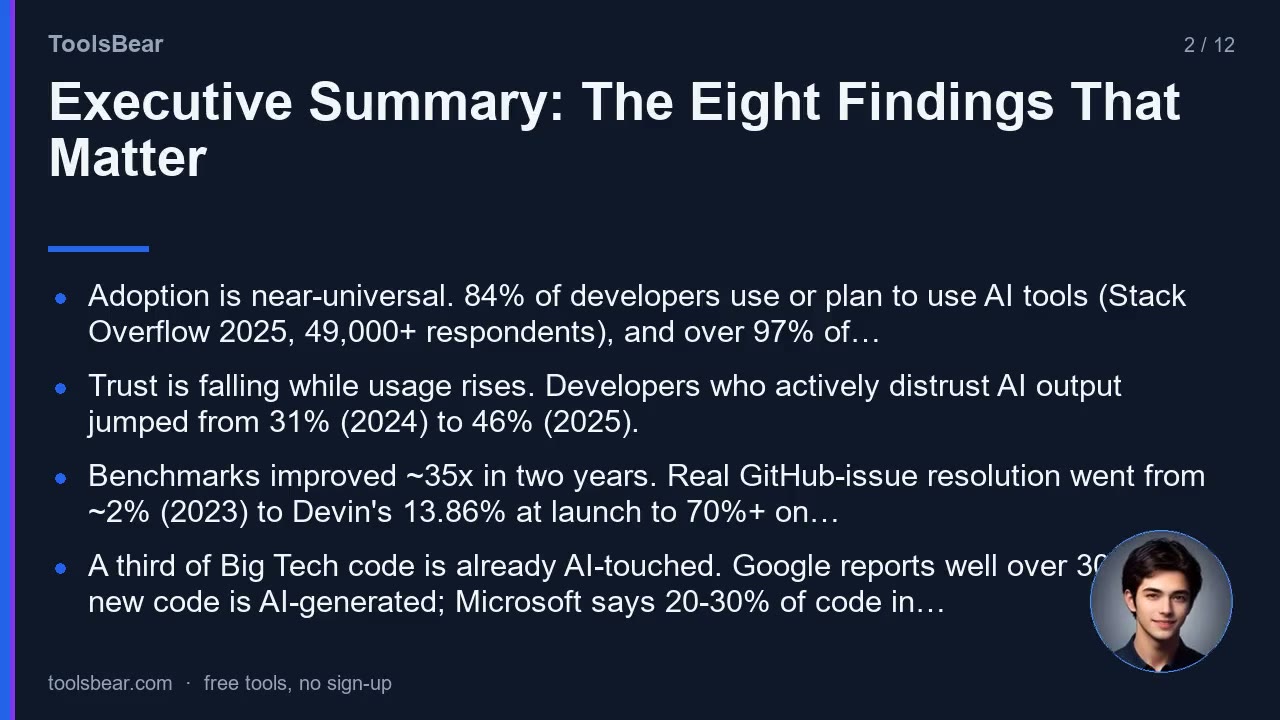
Every slide is branded, bulleted, and narrated — the presenter avatar floats in the corner while the voiceover plays.
How It Works — 3 Steps
Paste your article
Open the included article.txt and paste your text. Use # for the title and ## for each new slide heading — the plain-English format takes a minute to learn.
Double-click make-video.bat
The tool renders slides, narrates each section with an AI voice, and assembles everything with ffmpeg (auto-downloaded once, ~80 MB).
Get your MP4
A finished 720p video lands in the out\ folder — ready for YouTube, Instagram Reels, LinkedIn, or your own website.
Why This Tool
Runs 100% Offline
Slides, narration, and encoding all happen on your PC. Your text never leaves your machine — nothing is uploaded anywhere.
AI Voiceover Included
Uses your built-in Windows voices out of the box. If you have Python, it auto-upgrades to natural Microsoft neural voices — still free.
Presenter Avatar
A friendly AI presenter sits in the corner of every slide. Drop in any square photo named presenter.jpg to make it your own face or mascot.
Fully Transparent
It is a readable PowerShell script — you can open it in Notepad and see exactly what it does. No installer, no telemetry, no bundled software.
Unlimited Videos
No credits, no quotas, no per-render fees. Make a video for every article you have ever written — your CPU is the only limit.
HD Output
1280×720 MP4 (H.264 + AAC) with faststart — plays everywhere and uploads cleanly to YouTube and social platforms.
What Is in the ZIP
make-video.bat
The file you double-click to run the tool.
make-video.ps1
The engine — a readable PowerShell script that renders slides, narration, and video.
article.txt
A sample article in the simple # / ## format — replace it with your own text.
presenter.jpg
The on-screen presenter avatar. Swap in any square photo to customize it.
README.txt
Full instructions, options, and voice/avatar customization notes.
The Article Format (Takes 60 Seconds)
# Your Video Title

## First section heading
The paragraph text here is spoken aloud and the
first sentences become bullet points on the slide.

## Second section heading
Another paragraph — the tool makes a new slide for
each ## heading automatically.
That is the whole format. Roughly 600 characters of narration per section keeps each slide tight.
Who Uses It
Bloggers
Repurpose every blog post into a YouTube video. One article becomes two pieces of content — written for Google, video for YouTube search.
Teachers & Students
Turn lesson notes and study guides into narrated explainers without learning video editing software.
Marketers
Batch-produce product explainers and LinkedIn content from copy you have already written.
Small YouTubers
Script in Notepad, narrated video out. No microphone needed, no editing timeline, no monthly subscription.
Honest Limits
- Windows only — the tool uses PowerShell and Windows text-to-speech. Mac and Linux are not supported yet.
- Slide-style videos — this makes narrated explainer videos, not cinematic AI footage. Think presenter + slides, not movie trailer.
- First run needs internet — to fetch the portable ffmpeg build (~80 MB, saved locally, never installed). After that it works offline.
- You own the output — and the responsibility for the content you put in. Keep it legal and original.
Free forever · No sign-up · No watermark fees · 30 KB
How to turn an article into a narrated video
Convert any article into an MP4 explainer video with the free ToolsBear Video Maker.
Download the kit
Download and unzip toolsbear-video-maker.zip.
Write your article
Open article.txt and paste your text — use # for the title and ## for each slide heading.
Run the tool
Double-click make-video.bat and wait a few minutes while slides, narration, and video are generated.
Get your video
Find your finished 720p MP4 in the out folder, ready for YouTube or social media.
Frequently Asked Questions
Is the article-to-video tool really free?
Does it work on Mac or Linux?
Does my text get uploaded to a server?
Why does it download something on first run?
Can I change the presenter avatar?
Can I change the voice?
Is it safe to run a .bat file?
Related Tools
AI Humanizer
Transform AI-generated content into natural human writing.
AI Content Detector
Detect AI-generated text with confidence scores.
Plagiarism Checker
Check text for plagiarism across the web.
AI Logo Generator
Create professional logos with AI in seconds.
AI Interview Copilot
Practice mock interviews with AI. STAR method scoring, 200+ questions.
Daily Horoscope
Get your daily horoscope and zodiac predictions.